
Requirements
Please ensure that you have a HubSpot account to use this theme. If not, you can visit this link to create a HubSpot account.
Create a HubSpot accountInstallation
You can either install your theme from HubSpot Asset Marketplace or a .zip file.
From HubSpot Asset Marketplace
If you're installing the theme from HubSpot Asset Marketplace, just click the Install for free button on theme page and then follow the instructions.
From .zip file
If you have a .zip file of your HubSpot CMS theme, please follow the steps below to install it onto your account:
- Login to your HubSpot account.
- On the top right, click the Settings icon (looks like a gear).
- Click Tools > Website > Themes from the left sidebar menu.
- You'll see the Upload Theme button at the top right corner of the screen. Click it and then choose the zip file you've got.
If you completed the steps successfully, you should see the YouCare theme and its templates when you're creating a new page.
To learn more about theme installation, please visit HubSpot Reference Docs.
FAQ
Here you can find the answers to frequently asked questions by our customers.
How can I view "Theme Settings"?
Navigate to Marketing > Website > Website Pages and choose a page to edit. On Edit page screen, switch to Theme tab and then click Edit theme settings button.
Templates
Youcare has 13 ready-to-use page templates for you, as well as the default HubSpot system templates such as Search Results, Password Required Page, Subscription Page etc.
Home
A dynamic and engaging homepage template designed to showcase key offerings, client logos, and highlight services through interactive modules like sliders, tabbed content and Stats.
- Banner Module
- Left Image Right Content
- Clickable Tabber
- Left Content Right Image
- Card
- Testimonial
- Image overlap content
File location: /templates/home.html
Security
The page mainly focuses on explaining how the platform protects users' personal information, sensitive documents, and payment data.
- Banner
- Three Feature Cards
- Image with Right Content
- Testimonial Card
- Image Overlap Content
File location: /templates/Security.html
Workshop
This page mainly focuses on promoting an educational workshop where users can learn about end-of-life planning, using the Your Care platform, managing important documents, and preparing their families for medical emergencies.
- Banner
- Three Feature Cards
- Two Column with Rows
- Image with Right Content
- Testimonial Card
- Sign Up
File location: /templates/Workshop.html
Contact
The Youcare Contact page provides contact information, including phone, email, office address, and consultation hours. It guides visitors through the enquiry process, from submitting a request to receiving a personalized visa consultation and migration strategy.
- Banner
- Contact
File location: /templates/Contact.html
Blog
A blog listing template designed to display your latest articles, news updates, and insights with easy navigation and CTAs for deeper engagement.
- Banner
- Blog Listing
File location: /templates/blog.html
Blog Post
Currently, HubSpot does not allow the use of drag-and-drop features in blog post templates. The sections and modules are embedded directly into the template and cannot be customized through the page editor. It contains the following module:
- Blog Post
- Related Articles
File location: /templates/blog-post.html
Sections
YouCare has 6 ready-to-use sections.
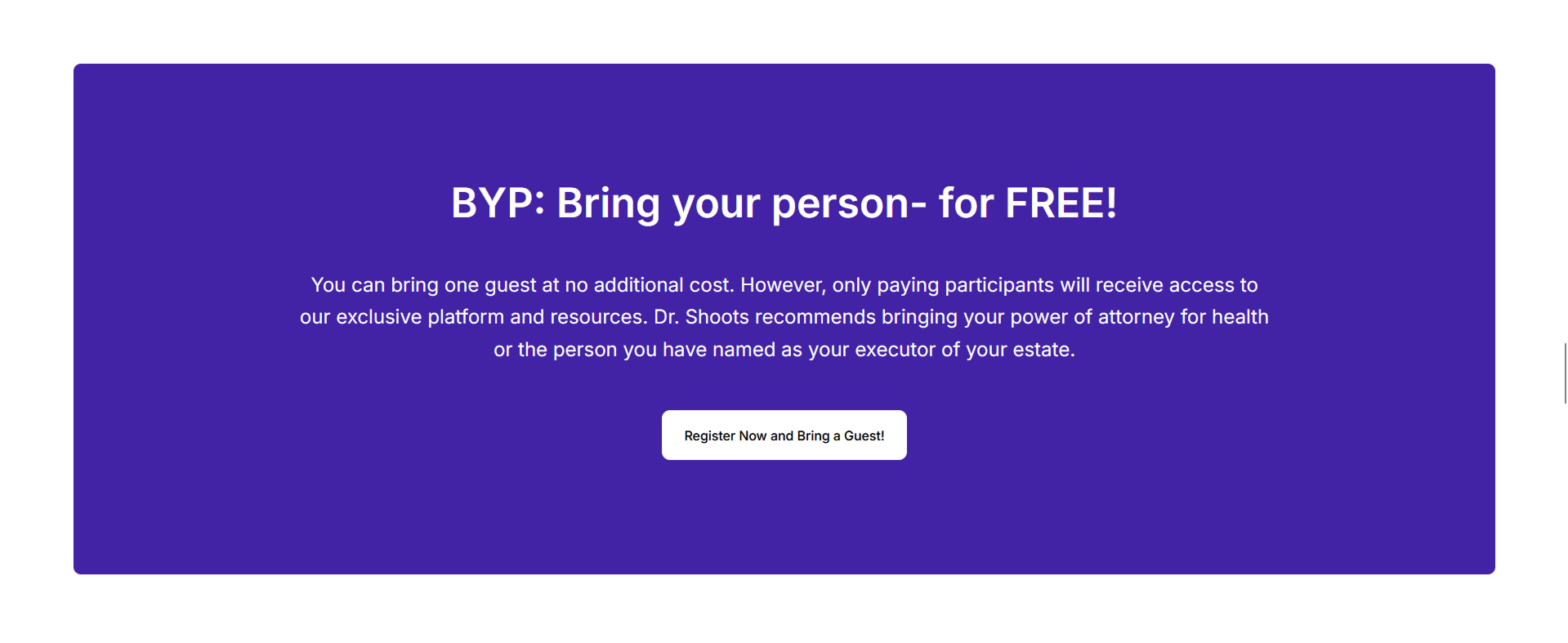
Call To Action
This section contains a single column with a heading, supporting text, and a button.
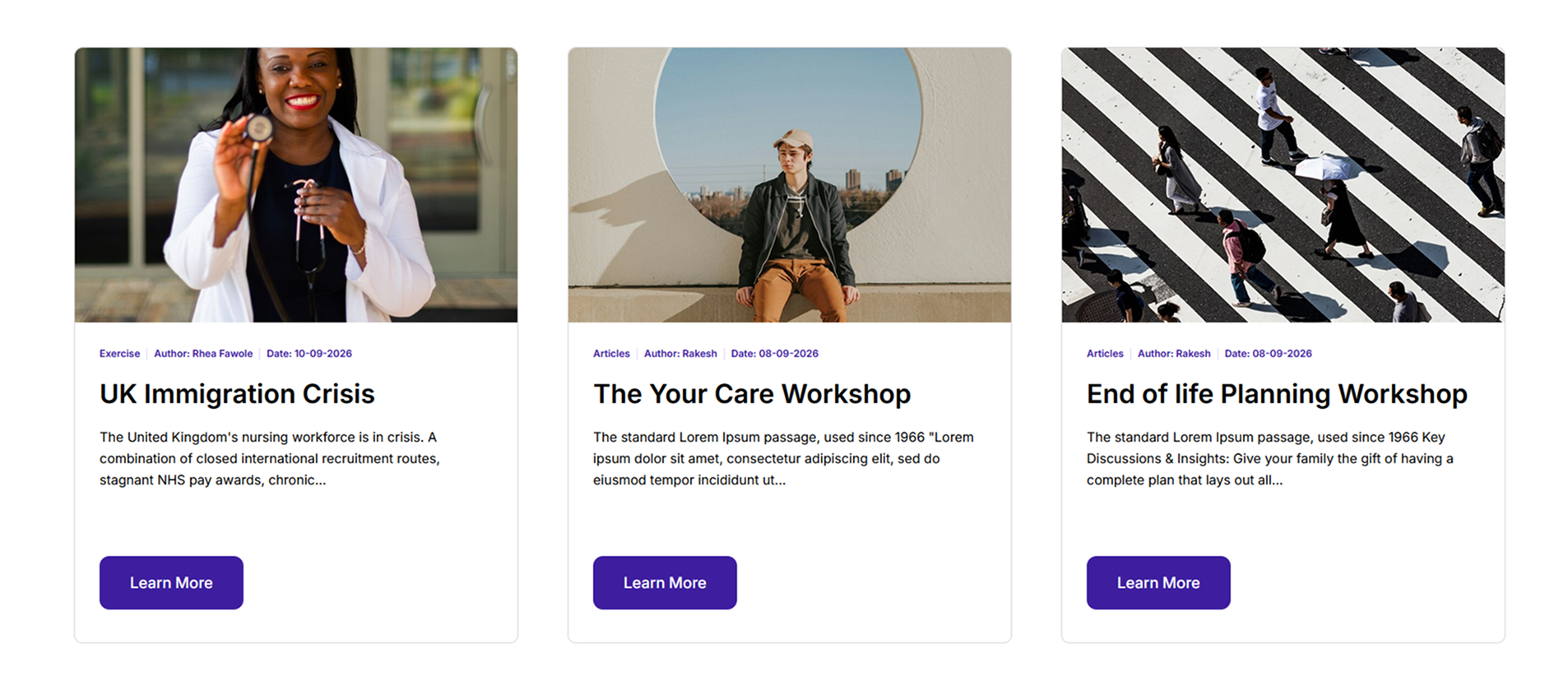
Cards
This section is divided into three columns. Each column includes an image at the top, followed by content such as number, email, and address.
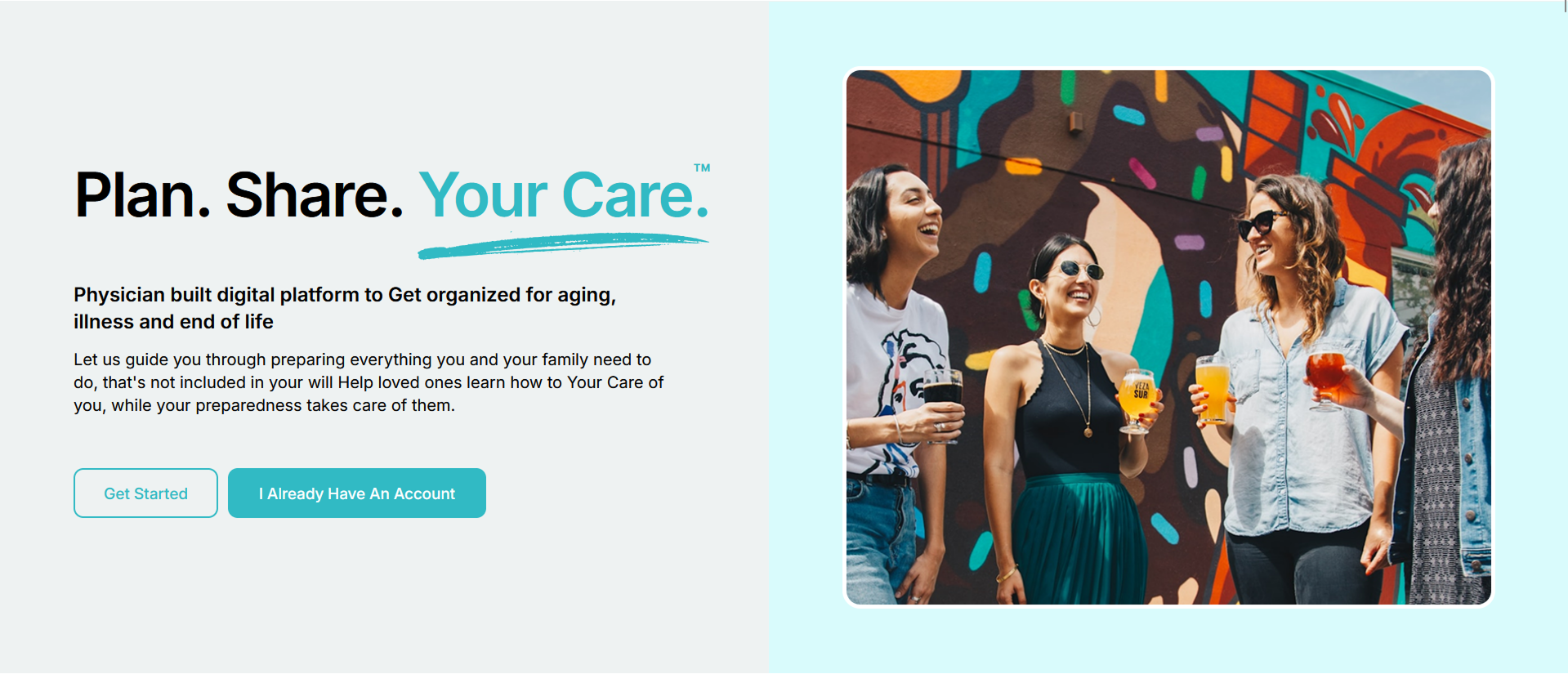
Hero Banner
Youcare is committed to providing reliable medical education guidance, visa assistance, and personalized support. Connect with our team to explore opportunities, get expert advice, and take the next step toward your international education journey with confidence.
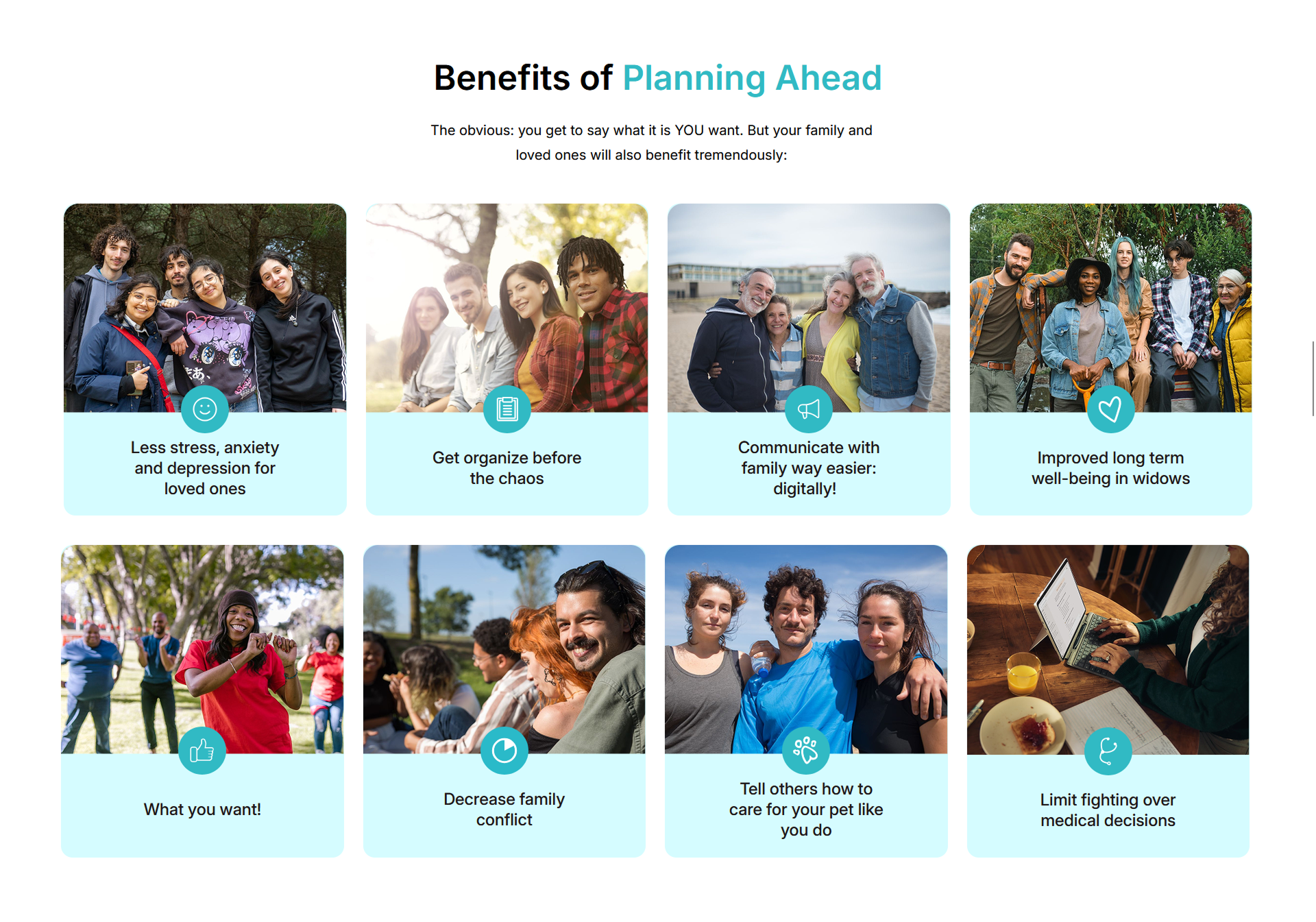
Multi Column Content
This section is divided into four columns. Each column includes an image at the top, followed by a heading, subheading, description and button .
Multi Row Content
This section has two columns: the right column contains a heading and description, and the left column displays an image.

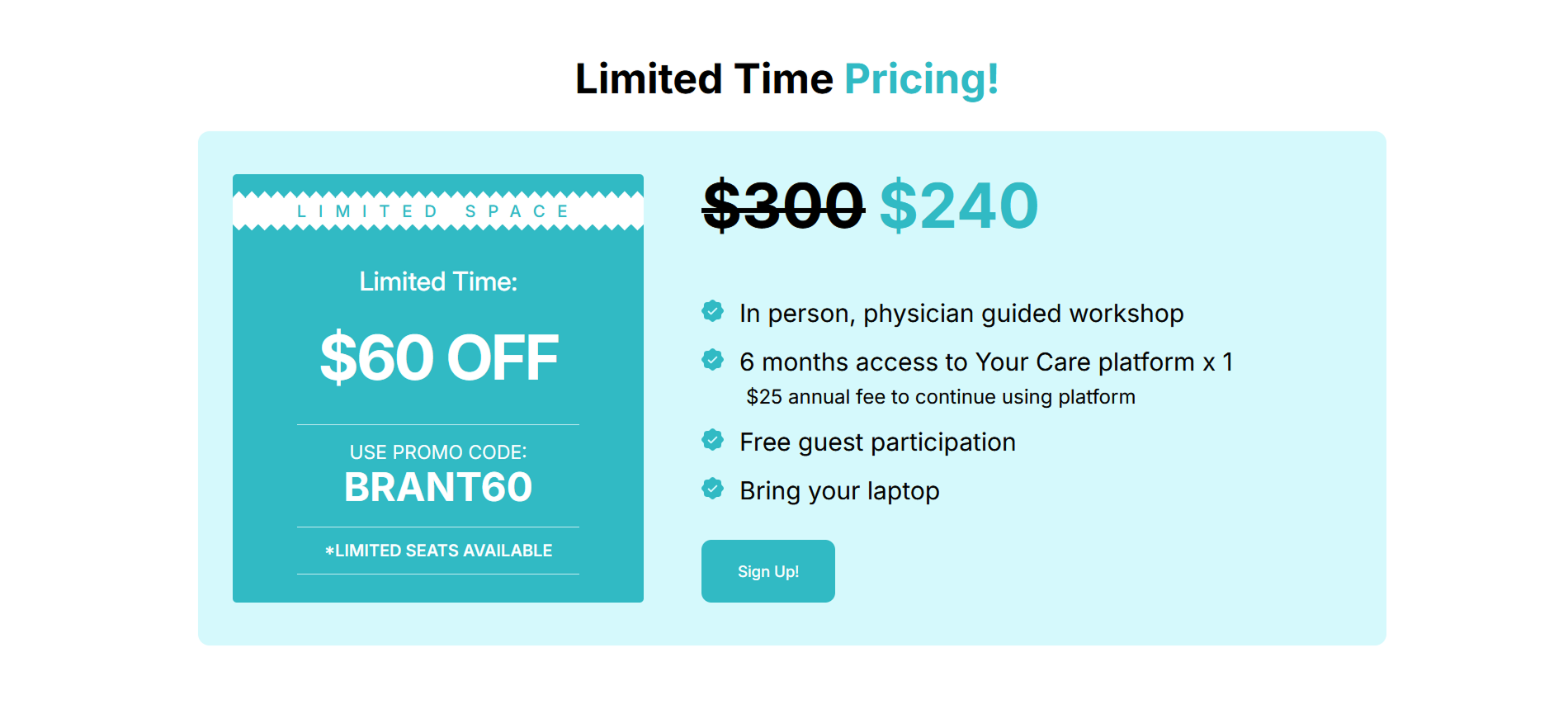
Pricing
This section has two columns, each containing pricing content.
Modules
Youcare has 10 ready-to-use modules.
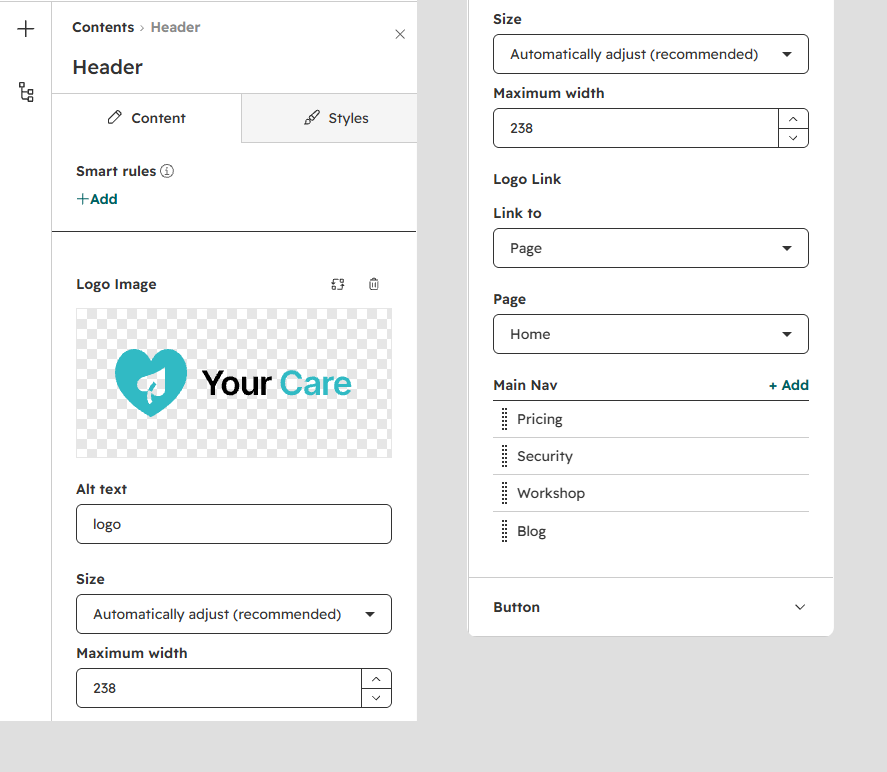
Header
One module for the entire header navigation.
Footer
One module for the entire footer.
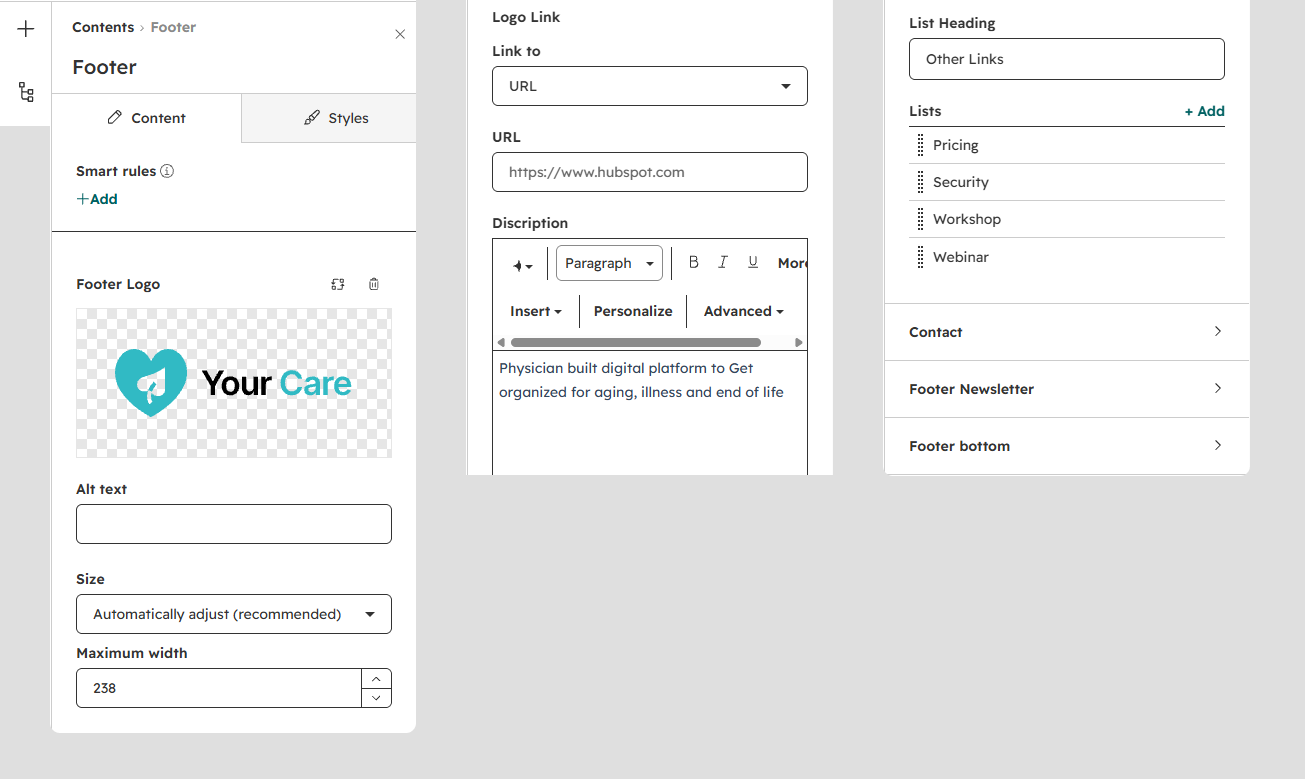
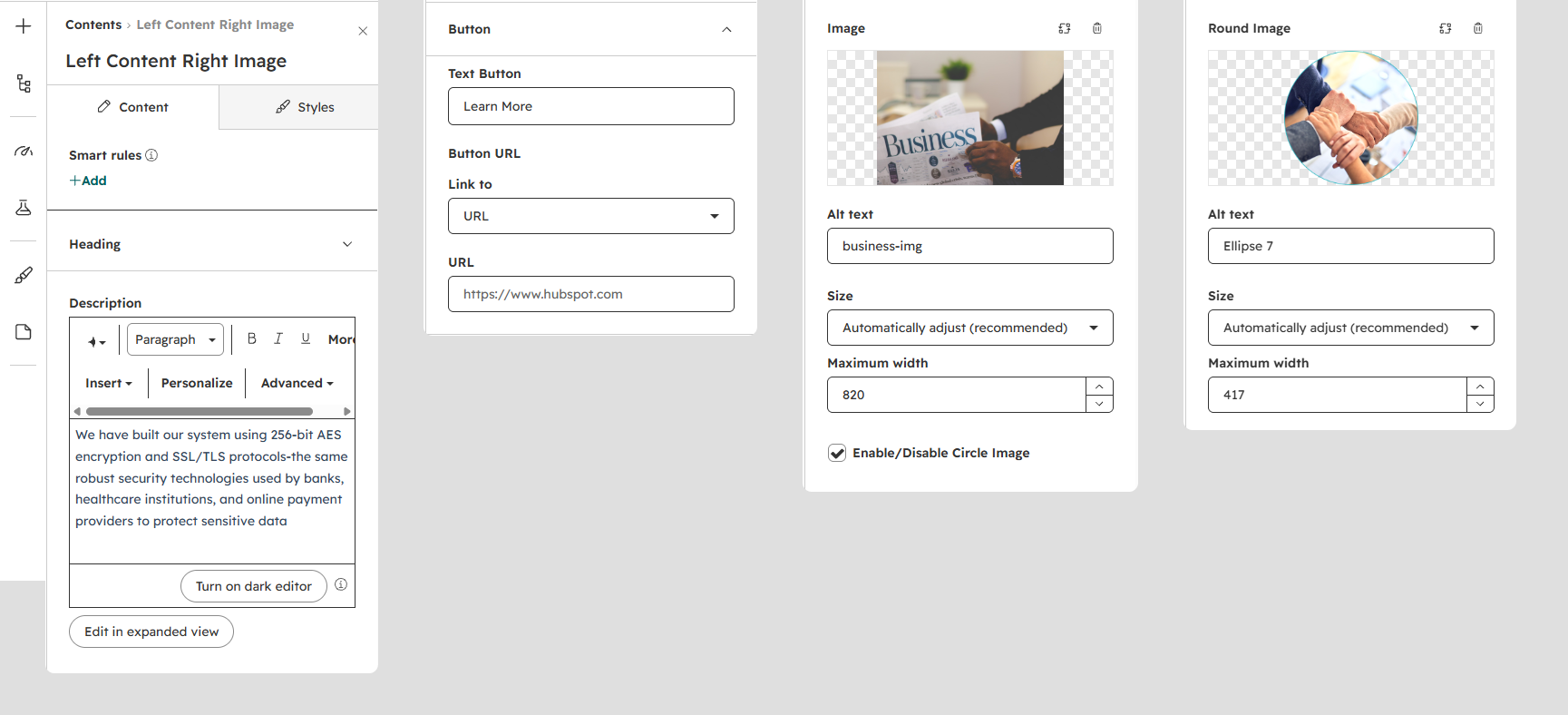
Image Content Module V2
This module allows you to add both content and an image.
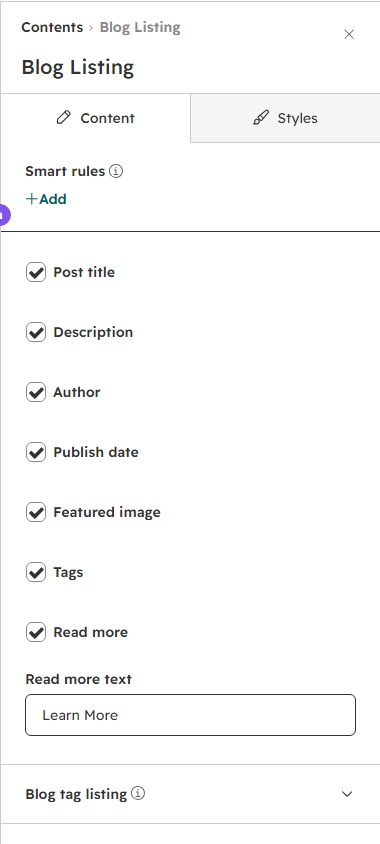
Blog Listing
You can list your blog posts in various layouts.
Banner Module
This module allows you to add left-side content and buttons, along with a right-side image. You can also customize the entire banner for visual emphasis or brand consistency.
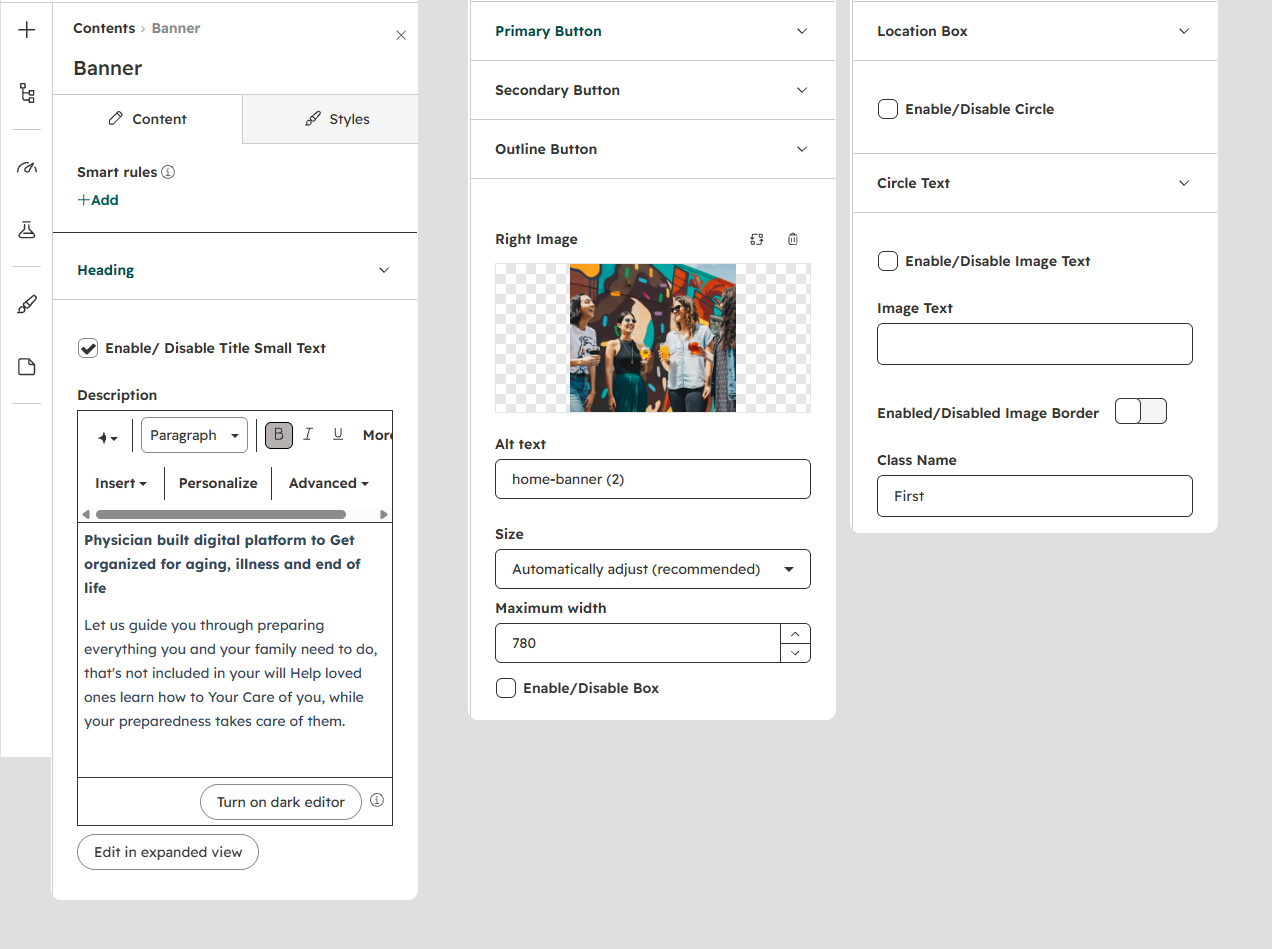
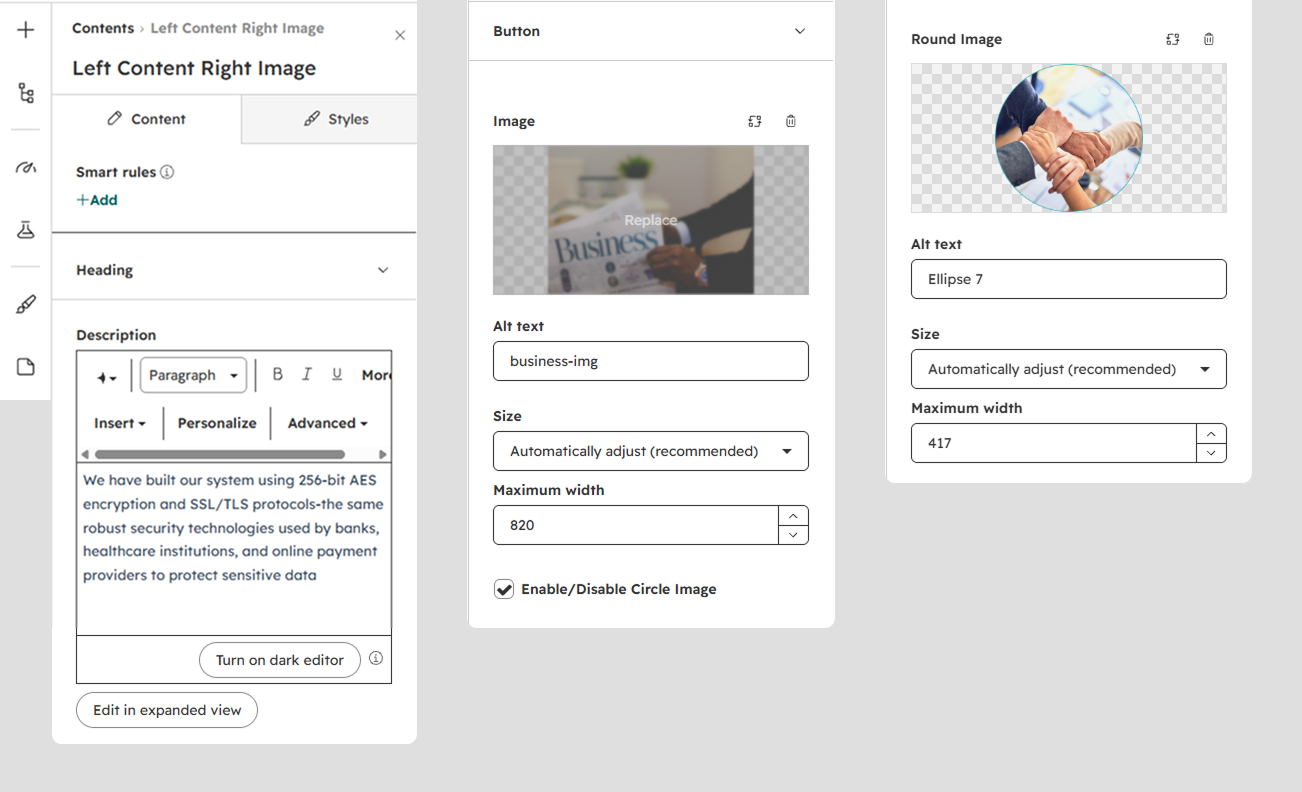
Image Content Module
This module allows you to add a title and description, followed by repeating content blocks. Each block includes a left-side image, right-side content with a button, and options to customize the section’s background color.
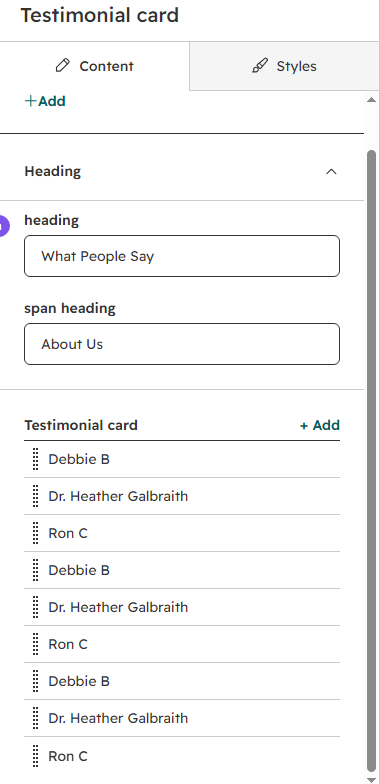
Testimonial
This module features a top title and description, followed by full-width slider blocks. Each slide includes a description, allowing you to showcase content in an engaging, scrollable format.
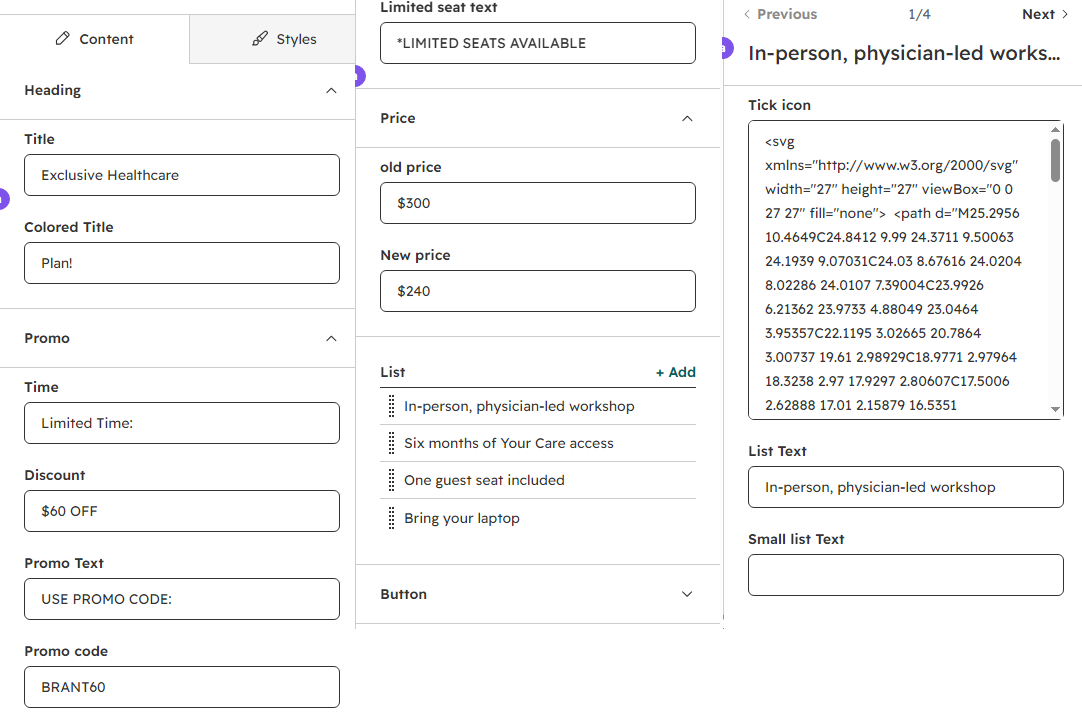
Pricing Module
This module allows you to add a title and description, followed by two customizable pricing columns. Each column includes pricing details and descriptions. You can also customize the background color of the entire section for better visual impact.
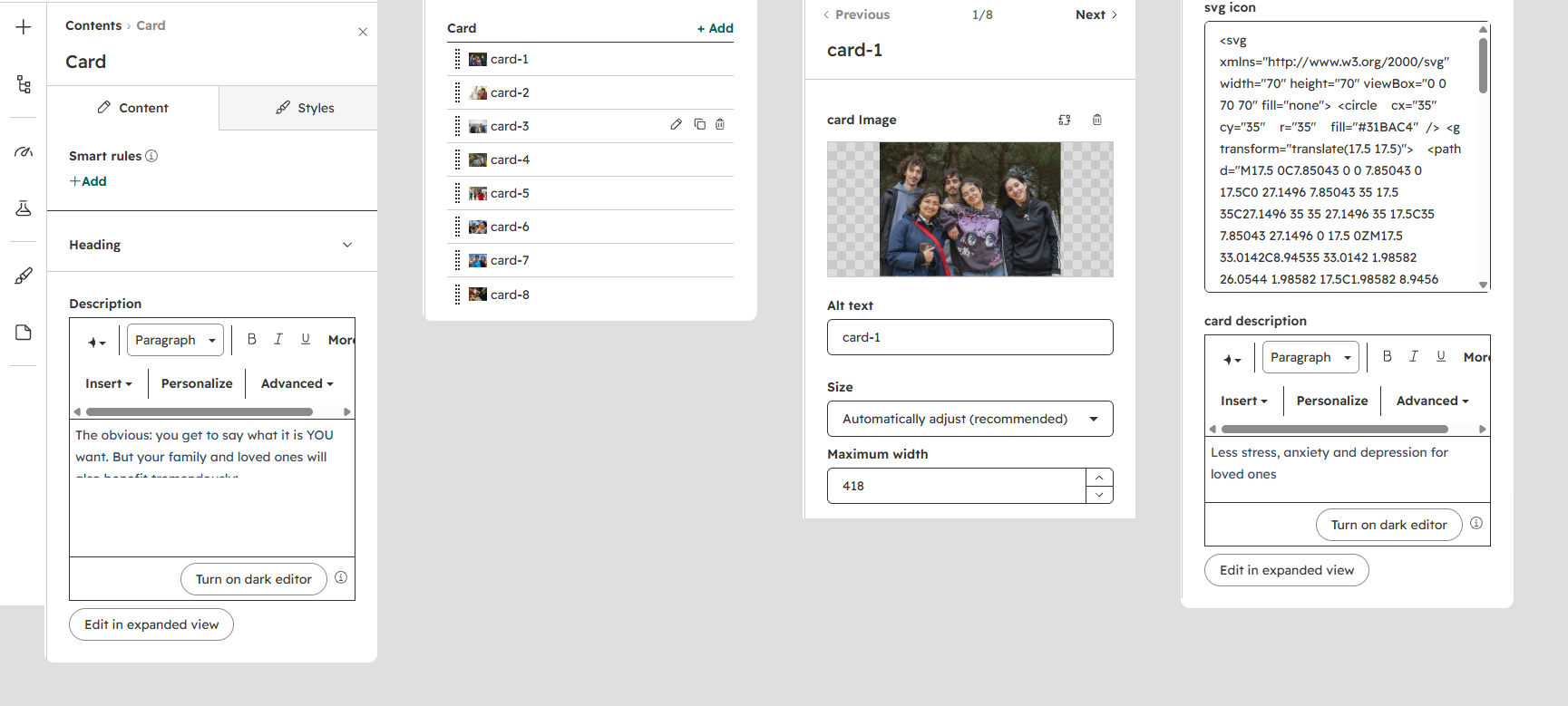
Cards Module
This module allows you to add a top title and multiple repeating two-column sections, each with an image, title, button and content.
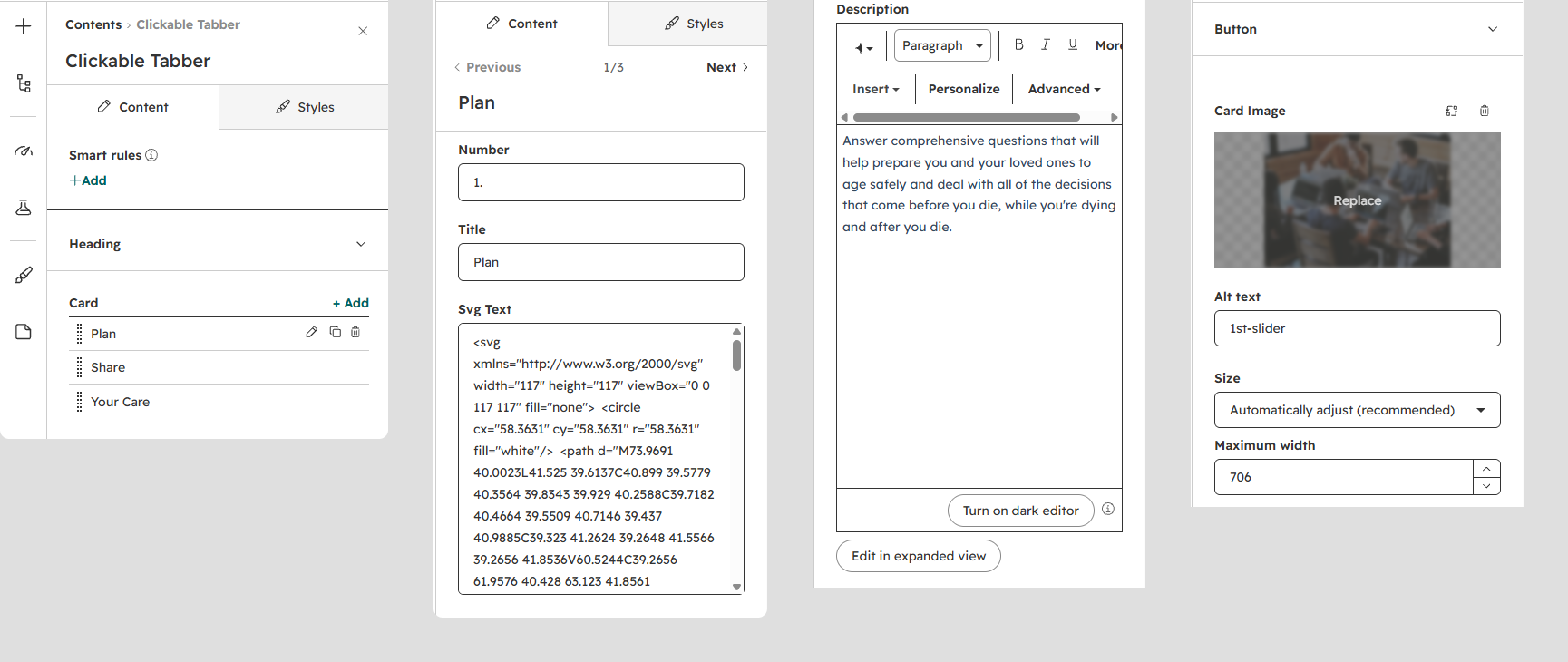
Clickable Tabber With Slider
This module includes a section heading, a main content container with a light background, a step icon, a step title, descriptive text, and a relevant image. It also features a CTA button. The module uses an interactive slider functionality that allows users to navigate between steps, with the content, images, and descriptions changing dynamically.
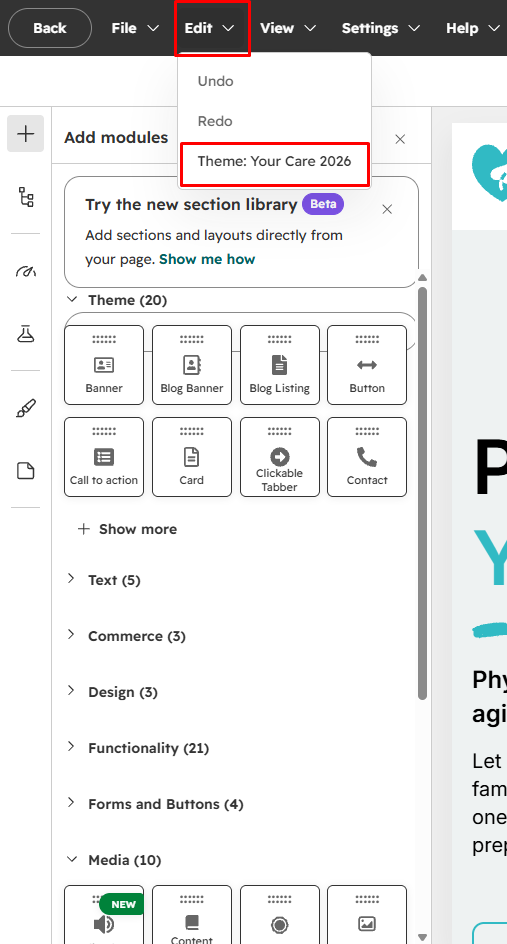
Theme Settings
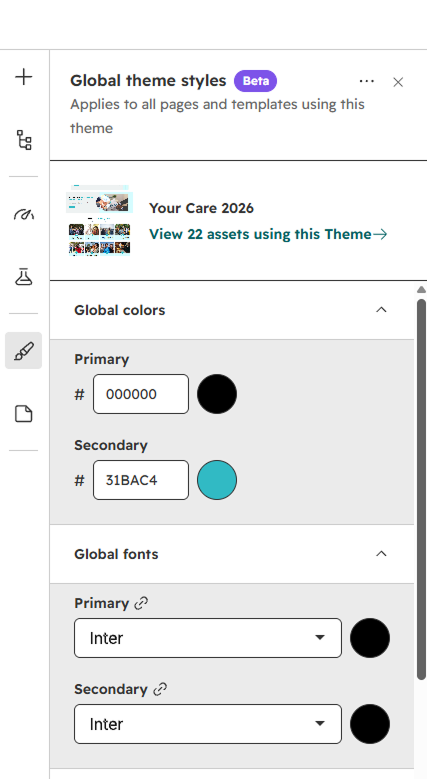
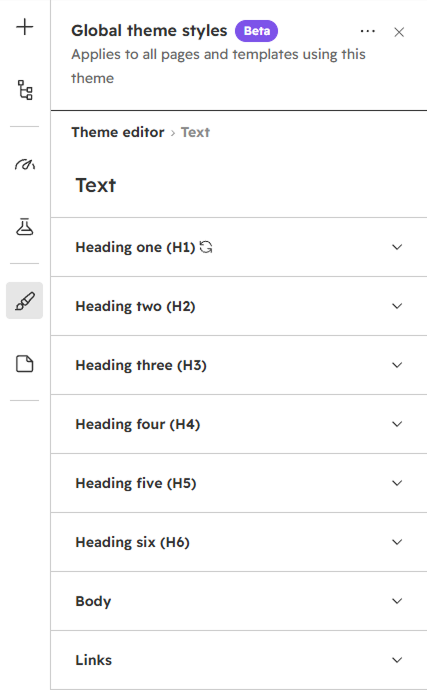
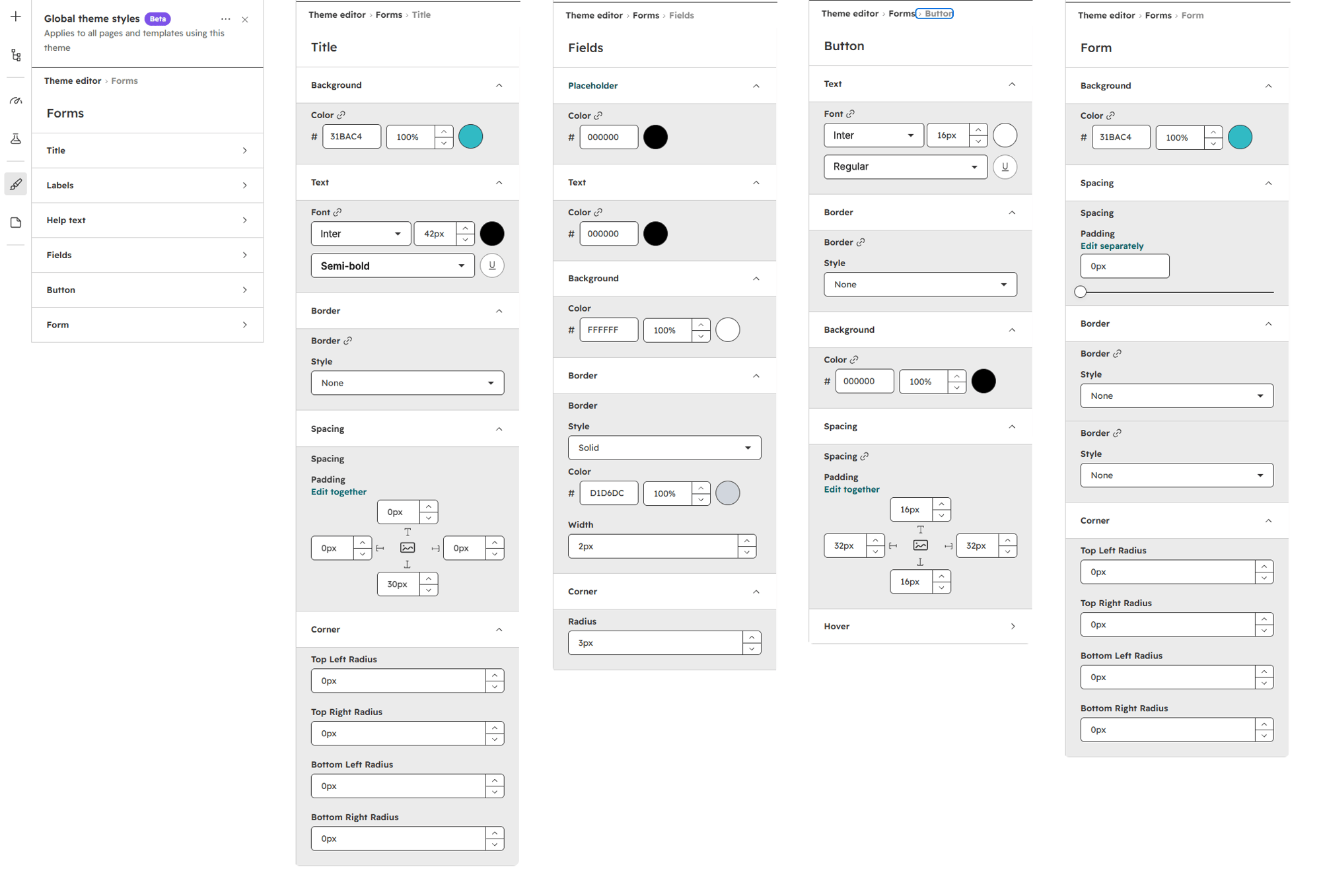
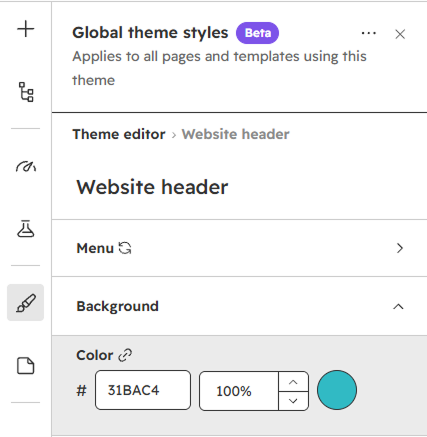
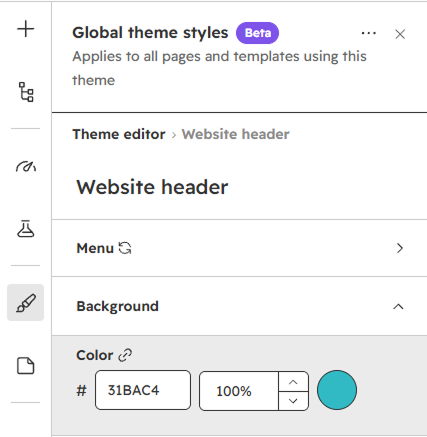
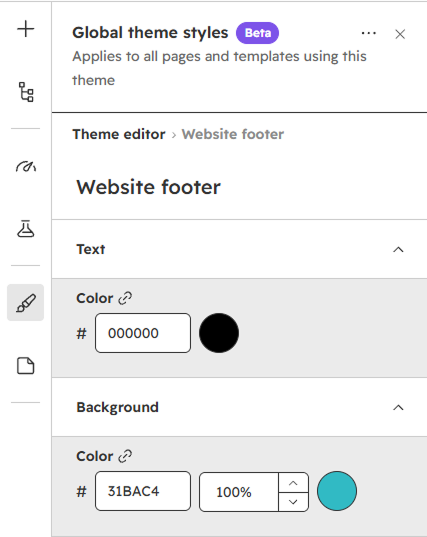
To edit your theme settings, you'll first need to create a page with a theme template. The theme settings can be accessed within the content editor by clicking the Theme tab on the left. Then click Edit theme settings.
The complete structure is as follows:
Global colors
Typography
Forms
Website Header
Website Footer
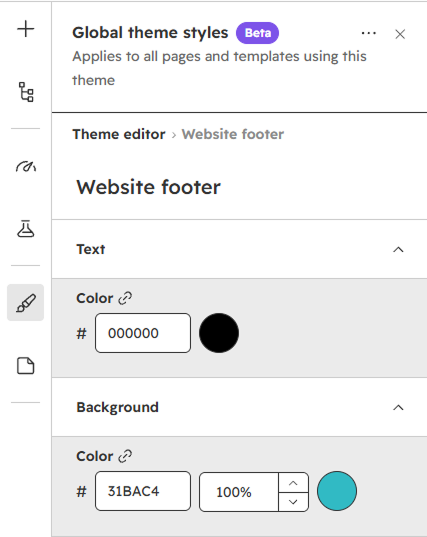
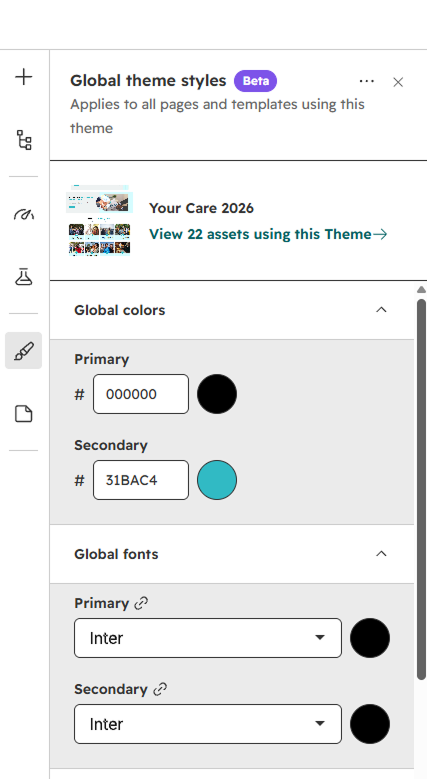
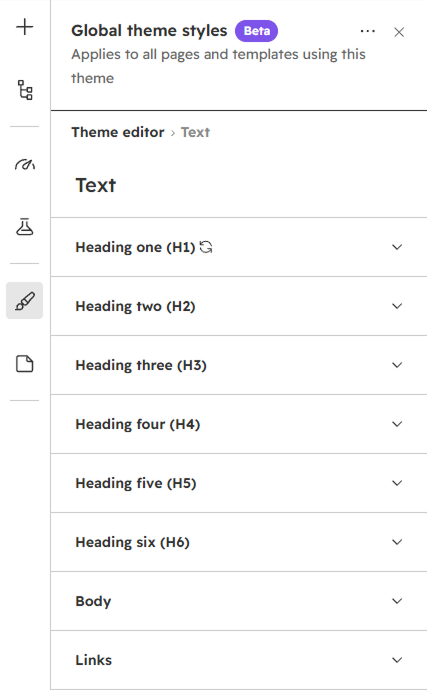
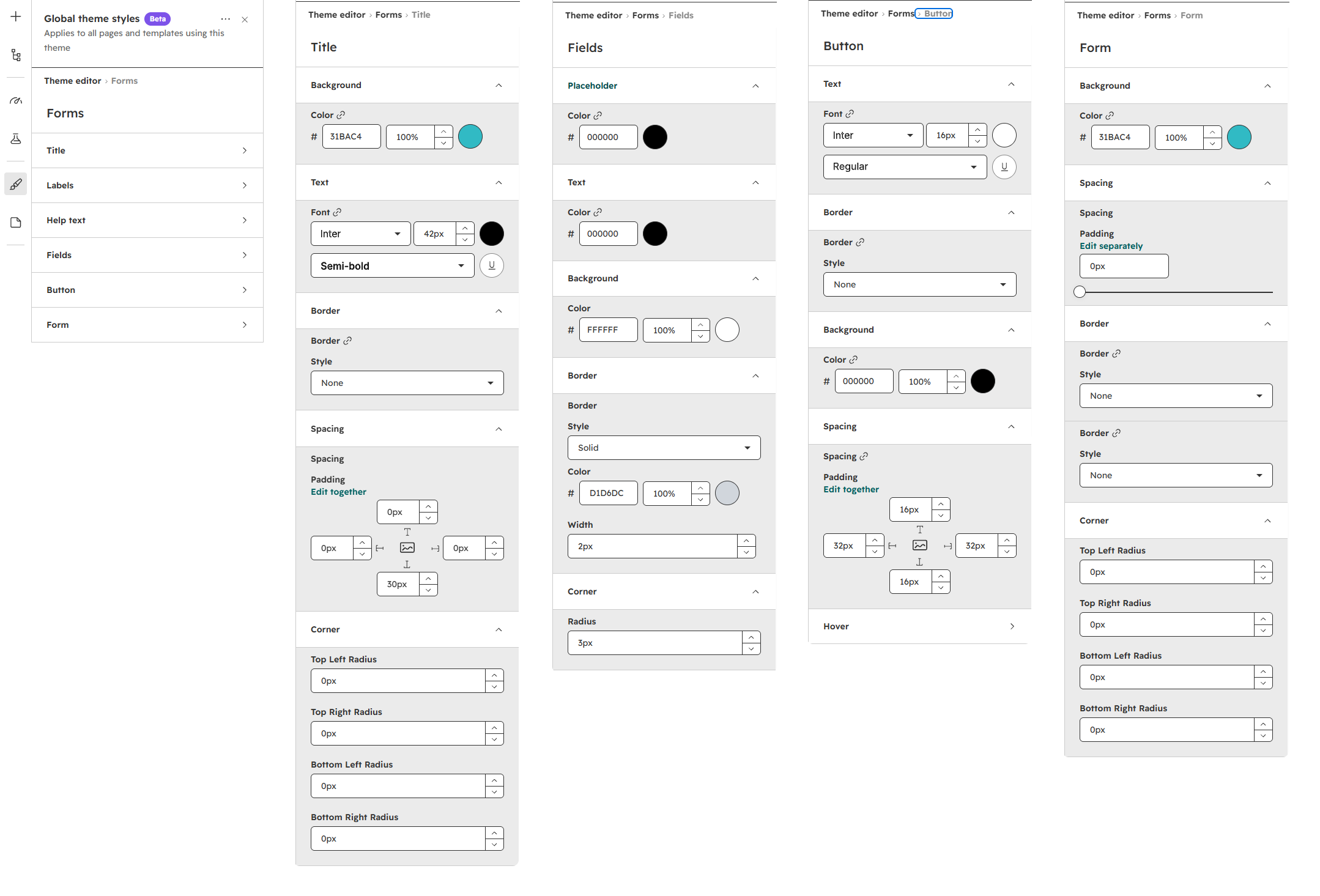
Keep in mind that you'll need to click the Publish to ... assets button at the top right corner of the screen only if you'd like to make changes on all pages that created with the theme.
Don't forget to click Apply Changes to let your changes take affect, when needed. You can visit HubSpot Knowledge Base for more information regarding your theme settings.
Visit HubSpot Knowledge BaseSupport
To ensure the best possible experience, Starkedge offers continuous support to all our customers. If you're experiencing any issues or have any questions—including pre-sale inquiries—please feel free to reach out to us through our support forum https://www.starkedge.com/contact-us Our developers are here to assist you every step of the way.